

1. Getting started
WooCommerce (WordPress)
Create your account, and let your store talk to ShipOS. To open this guide again, click the question mark.
1.1 Sign in
3 steps on this screen
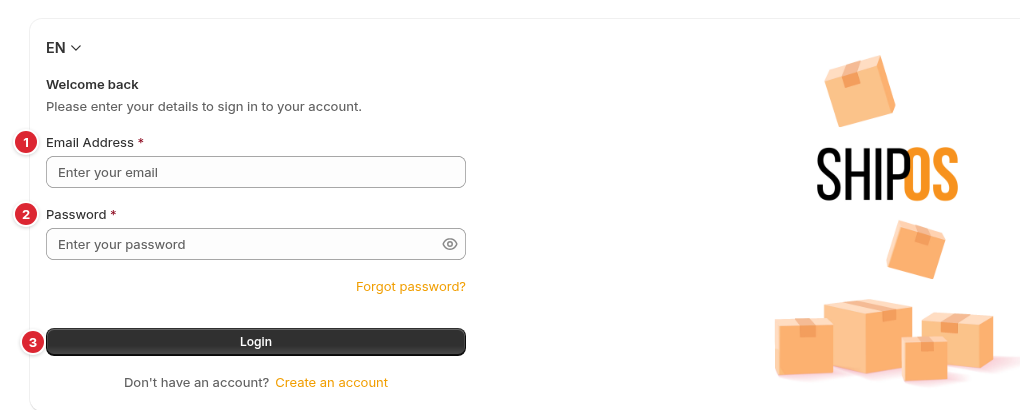
- 1Enter your email under Email Address.
- 2Enter your password under Password.
- 3Click Login.
Good to know
Forgot your password? Click Forgot password? under the password field and set a new one on the page that opens. New to ShipOS? Click Create an account.
1.2 Create an account
9 steps on this screen
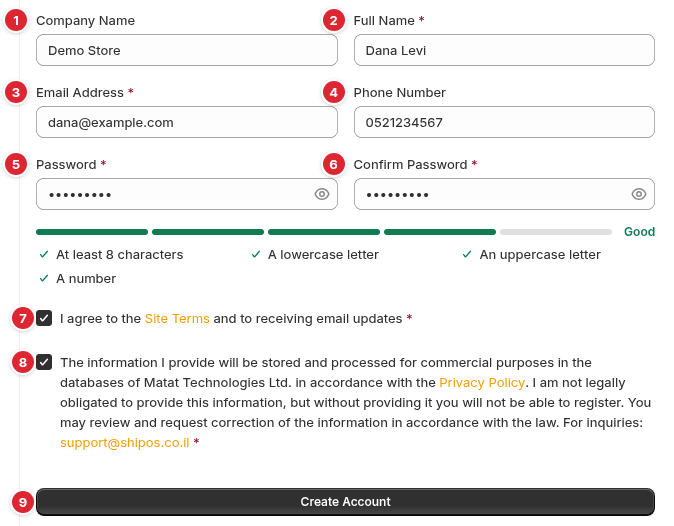
- 1Optionally, add your Company Name.
- 2Enter your name under Full Name.
- 3Enter your email under Email Address.
- 4Optionally, add your Phone Number.
- 5Choose a Password.
- 6Type it again under Confirm Password.
- 7Select the box to accept the terms of use and email updates.
- 8Select the box to agree to the privacy policy.
- 9Click Create Account.
Good to know
Use at least 8 characters, with an uppercase letter, a lowercase letter and a number. The meter under the field shows when the password is strong enough. Phone and company name are optional.
1.3 Verify your email
2 steps on this screen
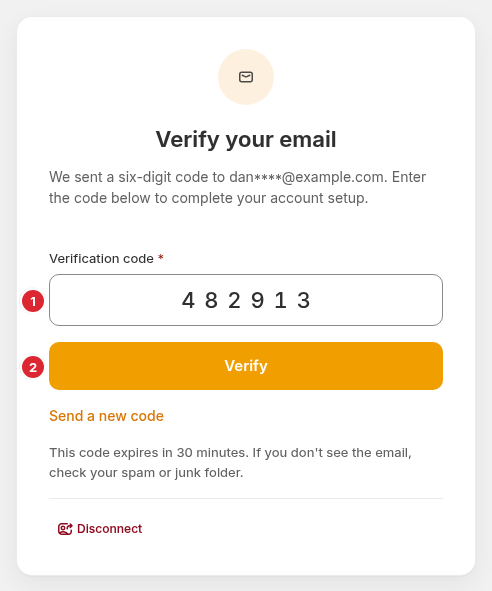
- 1Type the 6-digit code we emailed you.
- 2Click Verify.
Good to know
The code works for 30 minutes. No email? Check your spam folder, or click Send a new code.
1.4 Connect your store
2 steps on this screen
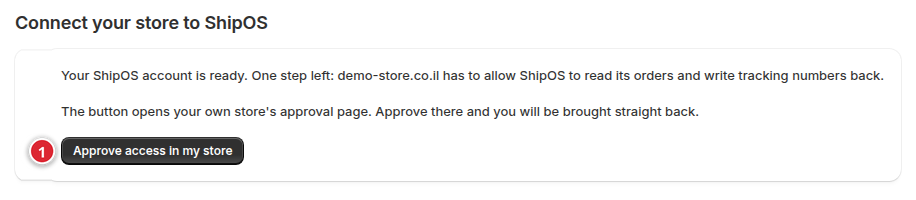
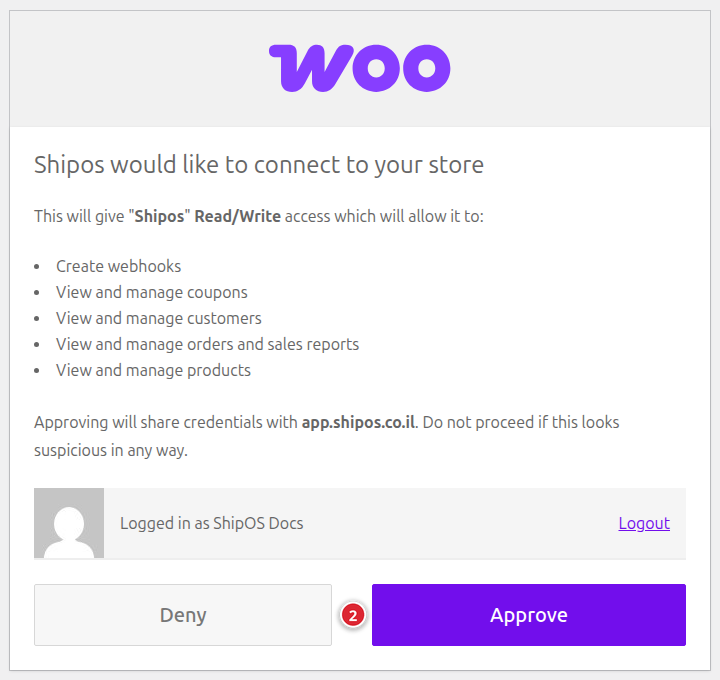
- 1In the ShipOS panel, click Approve access in my store.
- 2On WooCommerce's page, click Approve. WooCommerce creates an API key for ShipOS (the code that lets ShipOS reach your store), and you come straight back.
Good to know
This lets ShipOS read your orders and write tracking numbers back. You do it only once.
1.5 Fix a failed connection
2 steps on this screen
- Seeing "Could not connect to the Shipos server"? Ask your hosting company or web developer to allow app.shipos.co.il and the ShipOS IP addresses listed under What to do. Security software on your site (a firewall, Wordfence or Cloudflare) is blocking ShipOS.
- Seeing "Could not connect to your website"? Ask them to check the same blocking, that the site opens over https, and that Settings > Permalinks is not Plain.
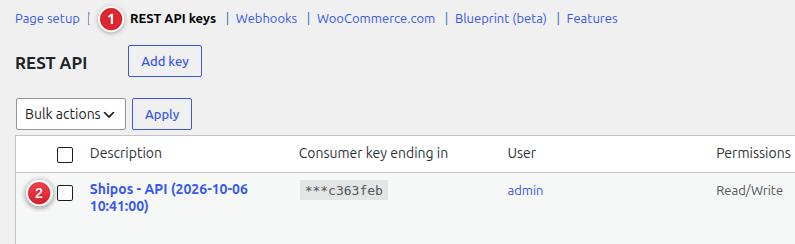
- 1In WordPress, open WooCommerce > Settings > Advanced > REST API keys. You do not need to click Add key.
- 2Check that a key named Shipos - API with Read/Write is listed. Missing? Click Approve access in my store again.
Good to know
REST API keys are the passwords apps like ShipOS use to reach your store. Approving creates the key ShipOS needs, so leave it in the list. Still stuck? Contact ShipOS support.