

2. Bulk shipping and printing
Wix
Ship many orders, and print many labels, in one go.
1Red numbers are the steps to take. Each one marks its place in the picture.Grey text explains what you see on the screen.Steps with no number happen outside the picture, on another screen.
2.1 Ship many orders at once (bulk shipments)
2 steps on this screen
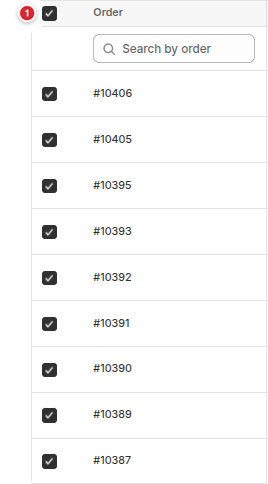

- Go to Orders.
- 1Select the box at the top to select every order on the page, or select orders one by one.
- 2Click Create shipments in the bar at the bottom.
- Select the shipping company and create the shipments, as explained in Send the selected orders.
Good to know
The bar counts the orders you picked. Clear selection starts again. To ship more than one page, show more orders per page at the bottom of the list.
2.2 Print many labels at once (bulk label printing)
3 steps on this screen
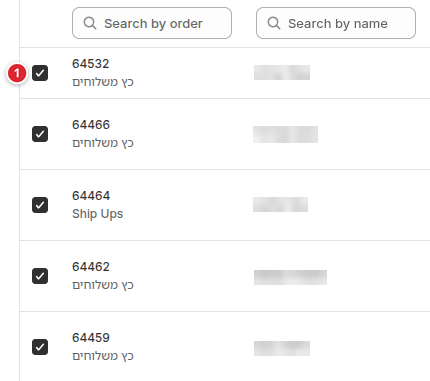

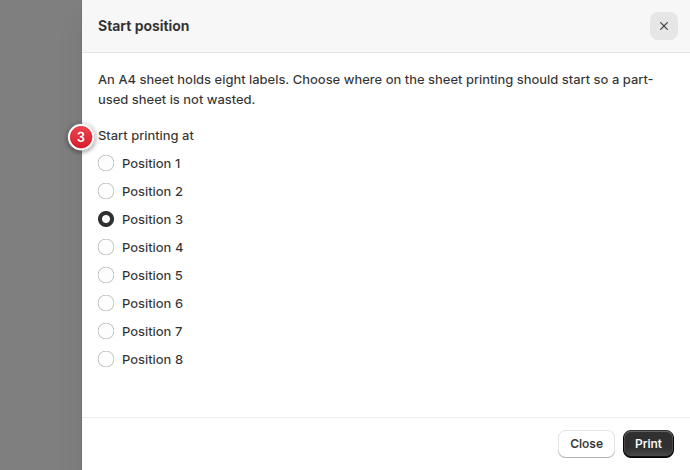
- 1Select the shipments you want to print.
- 2Click Print labels in the bar at the bottom.
- 3On A4 sheets, select where to start printing.
Good to know
Up to 100 at a time. Labels open in a new tab, ready to print. Shipments with different label formats open in separate tabs.