

1. Create shipments
Wix
Every way to create a shipment with your shipping company, from the order to the printed label. To open this guide again, click the question mark.
1Red numbers are the steps to take. Each one marks its place in the picture.Grey text explains what you see on the screen.Steps with no number happen outside the picture, on another screen.
1.1 Find an order
3 steps on this screen
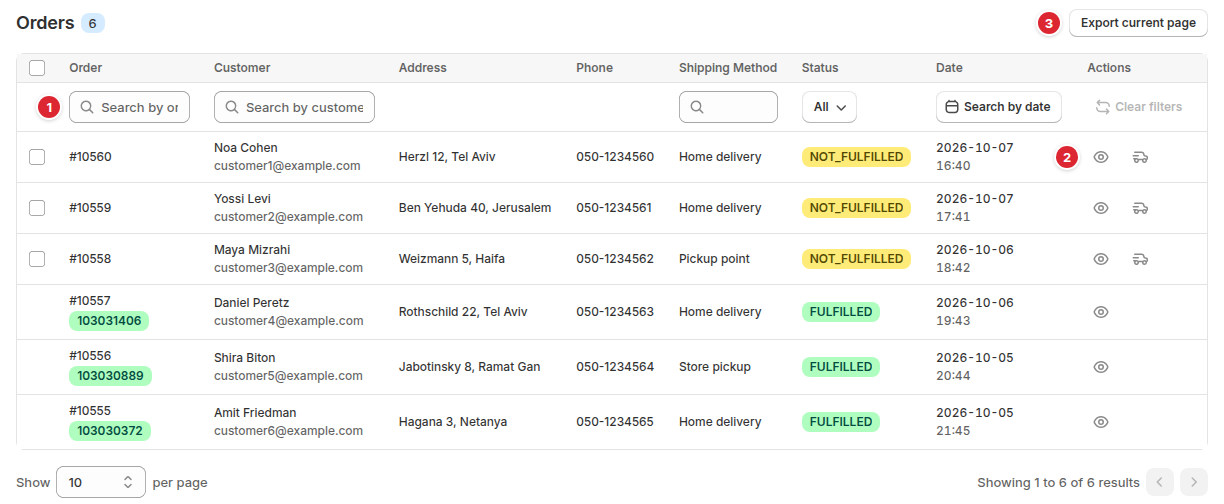
- 1Find orders by number, customer, status, shipping method or date.
- 2Click the eye (View order) to view the order, or the truck (Create shipment) to ship just that one.
- 3Optionally, click Export current page at the top to download the list.
Good to know
Orders arrive here on their own as soon as they are placed on your site.
1.2 Send the selected orders
6 steps on this screen
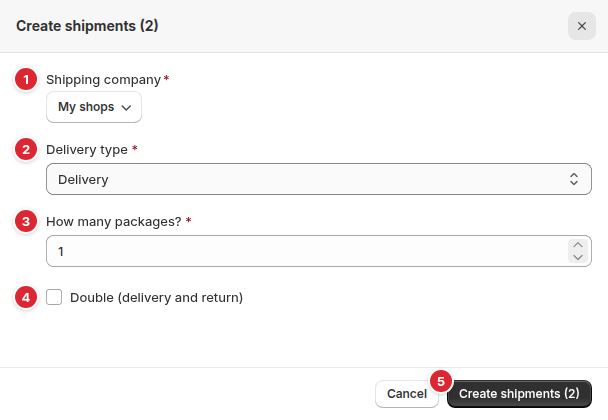
- 1Select the shipping company from the Shipping company list.
- 2Choose Delivery to send the order to the customer, or Collection to have the shipping company pick something up from them.
- 3Enter the number of packages under How many packages?
- 4Select Double (delivery and return) to deliver and collect a return in one visit.
- 5Click Create shipments.
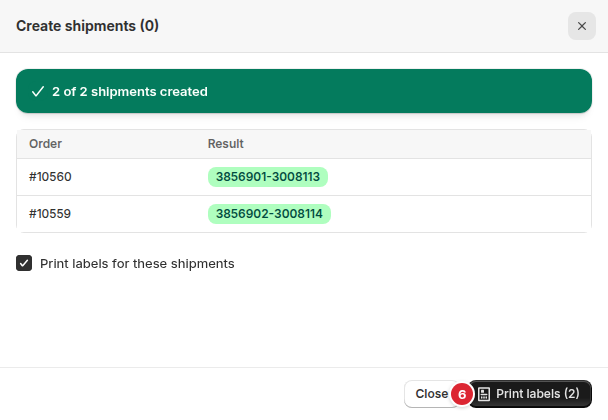
- 6Click Print labels.
- A shipment failed because of the address? Correct the delivery address on the order in your Wix dashboard, then send the order again.
Good to know
The window counts the shipments as they are created, and shows the reason next to any that fail.
1.3 Create a shipment without an order (manual shipment)
12 steps on this screen

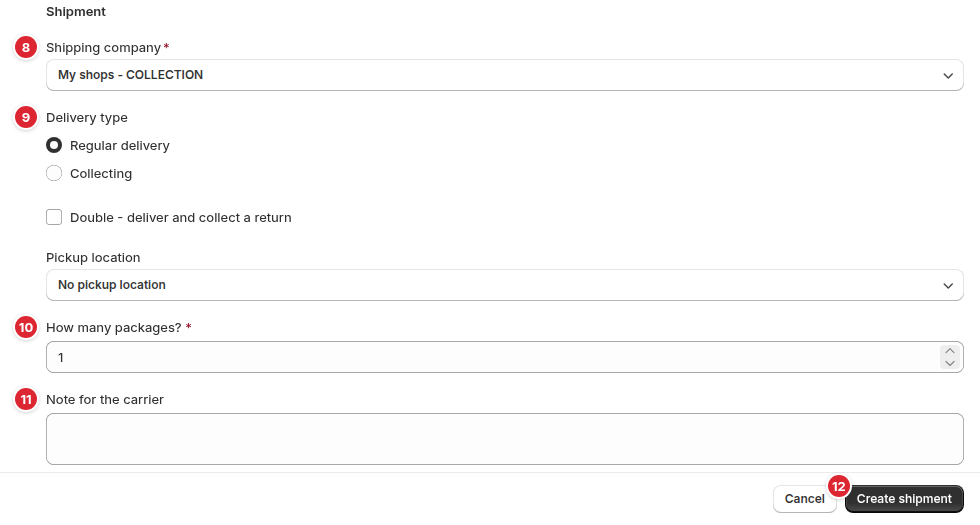
- 1Click Create shipment at the top of the screen.
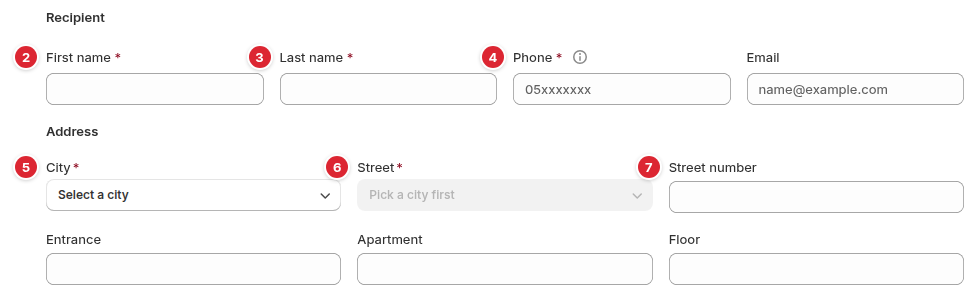
- 2Enter the recipient's First name.
- 3Enter the recipient's Last name.
- 4Enter their mobile number under Phone.
- 5Select the city from the City list.
- 6Select the street from the Street list.
- 7Add the Street number.
- 8Select the shipping company from the Shipping company list.
- 9Choose the Delivery type.
- 10Enter the number of packages under How many packages?
- 11Optionally, leave a Note for the carrier.
- 12Click Create shipment.
Good to know
For a delivery with no order behind it, such as a phone order, a replacement or a return to a supplier. Entrance, apartment, floor and email are optional. Select Double - deliver and collect a return to do both in one visit.