

6. Tracker Page
Wix
The page your customers follow their package on, and the link that opens it.
1Red numbers are the steps to take. Each one marks its place in the picture.Grey text explains what you see on the screen.Steps with no number happen outside the picture, on another screen.
6.1 Design your tracking page
10 steps on this screen


- 1Click Visit demo to see the page as your customers do.
- 2Choose one of the page templates. Preview shows how it looks.
- 3Upload your logo with Add files.
- 4Choose whether the page lists the items ordered.
- 5Enter the Email customers can write to.
- 6Enter the Phone customers can call.
- 7Enter your WhatsApp number.
- 8Optionally, add your Facebook page.
- 9Optionally, add your Instagram page.
- 10Click Save.
Good to know
The logo must be a PNG or JPG of up to 3MB. Contact details show under Do you have a question? at the bottom of the page. Leave a field empty to hide it.
6.2 See what your customer sees


- Your customer gets an SMS with their own tracking link. The link opens the tracking page, which shows the order number and the day it was placed. It shows where the package is now, from shipment created to arrived. It shows a summary of what they bought. It shows the delivery details: shipping code, delivery type, address and phone.
Good to know
You write the message under SMS Settings, and set the page's look (its template, your logo, the items and your contact details) on the Tracker Page screen.
6.3 Share the tracking link
1 step on this screen
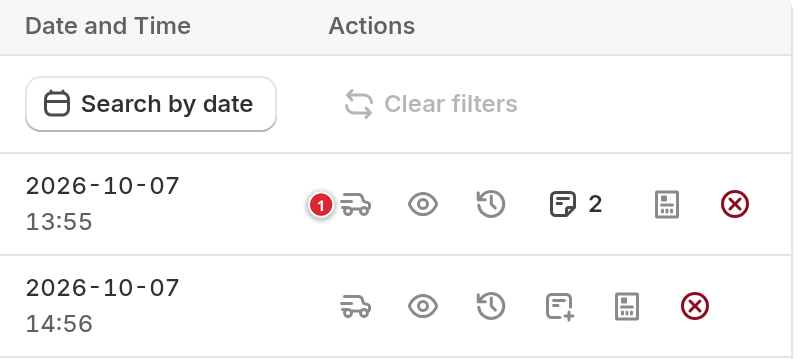
- 1Click Track shipment on the shipment's row. Your customer's tracking page opens in a new tab. Copy its address to send it.
- In an SMS template, click the Tracking page url value to insert the link. Every customer gets their own.
Good to know
Every shipment has its own link.