

7. SMS Settings
Shopify
Text your customers as their package moves: connect TextMe, then write the messages.
Before you start
Needs a TextMe account with an SMS package. TextMe is a separate service from ShipOS, with its own sign-up and billing. A ShipOS plan does not include it.
7.1 Connect TextMe for SMS (SMS settings)
5 steps on this screen
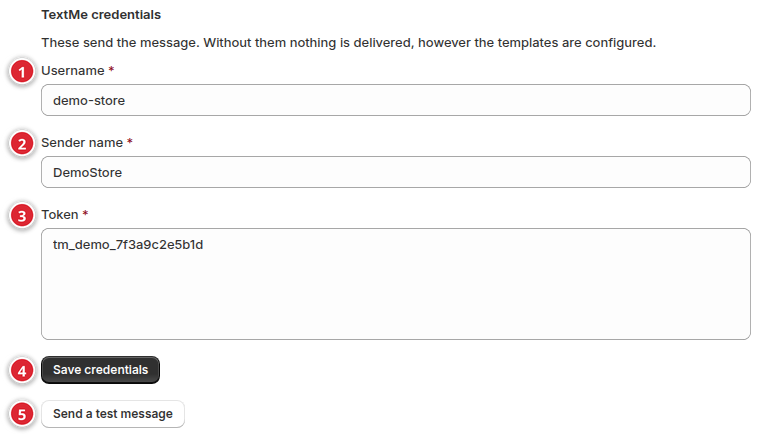
- 1Enter your Username.
- 2Enter the Sender name.
- 3Paste the token (a long code) from your TextMe account. The note below says where to find it.
- 4Click Save credentials.
- 5Click Send a test message to check that it works, as Send a test SMS explains.
Good to know
Where to find the token: sign in at my.textme.co.il, open API in the menu, click Create, give the token a name (for example ShipOS) and copy it. TextMe shows it only once, so paste it right away. Without these details, ShipOS sends no messages, whatever your templates say. TextMe charges each message to your balance. No TextMe account yet? The link on the screen shows their packages.
7.2 Buy a TextMe package
2 steps on this screen
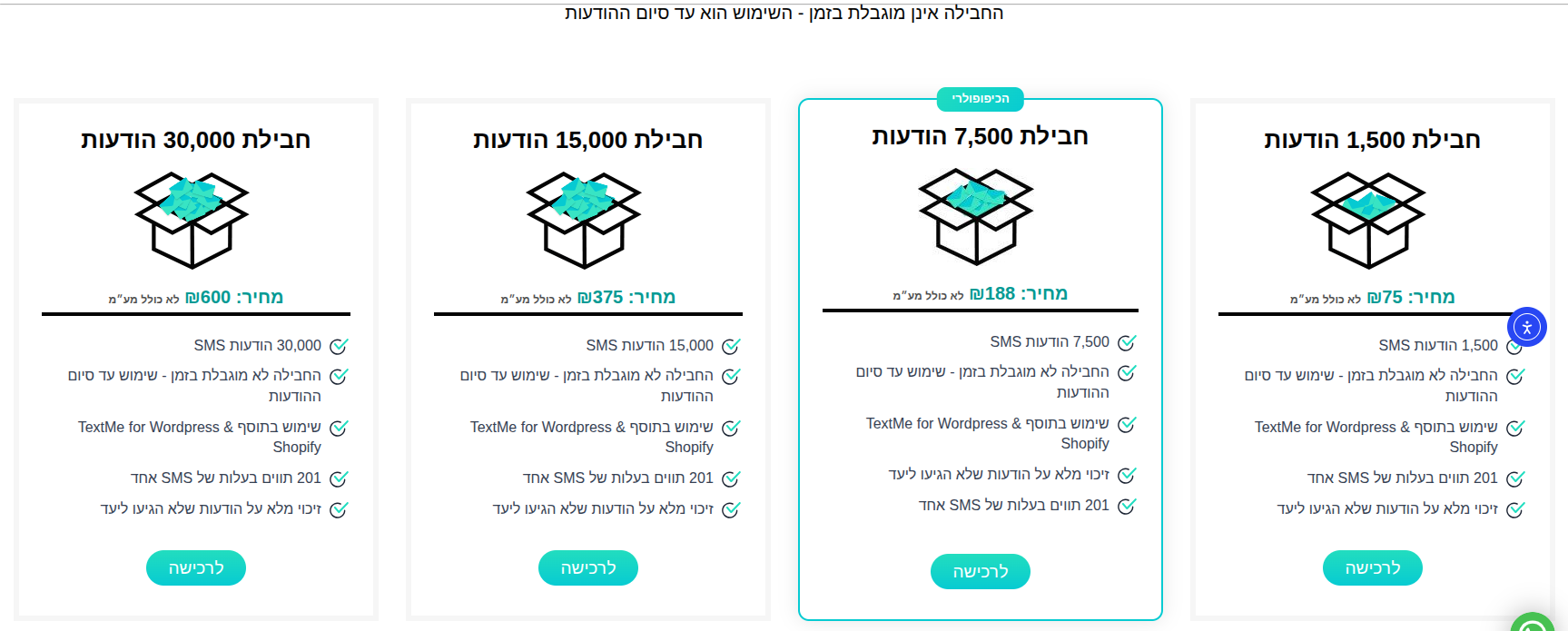
- On SMS Settings, click View the best value TextMe packages. TextMe's site opens.
- 1Choose a package by how many messages you send. The price is per pack.
- 2Click the package's buy button and pay on TextMe's site.
Good to know
TextMe's site is in Hebrew only. Packages do not expire: the messages stay until you use them. Then paste the credentials TextMe gives you under SMS Settings.
7.3 Send a test SMS
4 steps on this screen

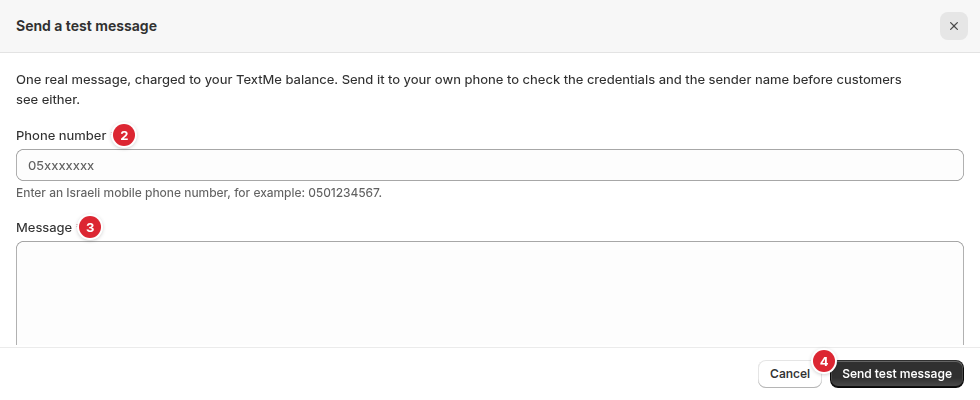
- 1Click Send a test message.
- 2Enter your own mobile number.
- 3Type any message.
- 4Click Send test message.
Good to know
One real message, charged to your TextMe balance. The button appears once you save your credentials.
7.4 Write the messages (SMS templates)
6 steps on this screen

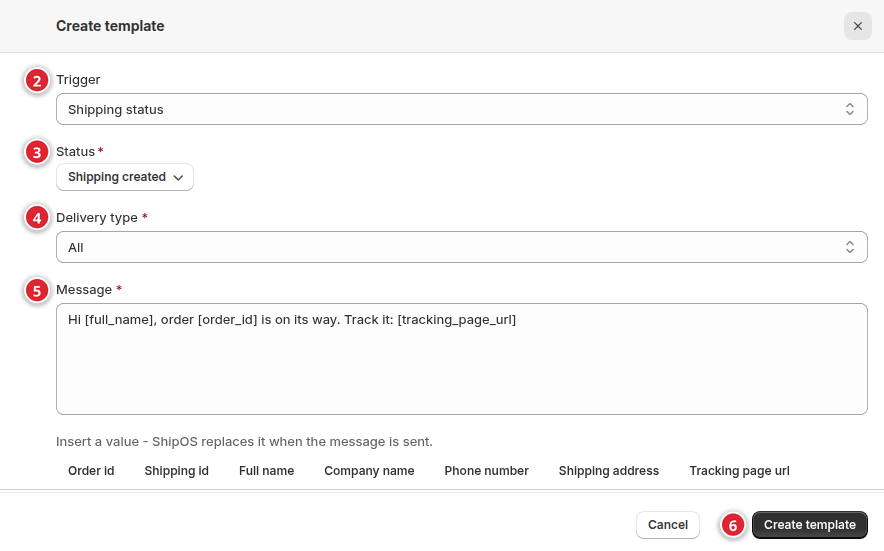
- 1Click Create template.
- 2Choose the Trigger: a shipping status, or a shipping method.
- 3Under Status, choose when the message is sent: when the shipment is created, or when it arrives.
- 4Select the delivery type it applies to from the Delivery type list.
- 5Write the message, and click the values to insert. ShipOS fills them in for each order.
- 6Click Create template.
Good to know
One message per trigger. You can insert the order ID, shipping ID, full name, company name, phone number, shipping address and tracking page URL.
7.5 Turn messages on and off (SMS automation)
3 steps on this screen
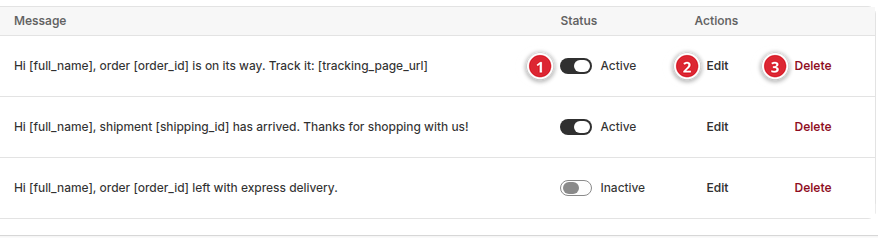
- 1Turn the switch under Status on or off. Only active templates are sent.
- 2Click Edit to change a template.
- 3Click Delete to remove one.
Good to know
A message goes out only if the shipment has a phone number and its delivery type matches the template, or the template is for all types.